
The print redirection rabbit hole
It’s no secret. Printing isn’t the most thrilling topic in IT. I think we can all agree on that. Yet, it’s still a daily requirement for most users, which brings us IT folks the “joy” of troubleshooting printer issues from time to time. Today, I want to share a specific story about printer redirection in Azure Virtual Desktop (AVD).
We recently onboarded a new client to AVD. Everything was running smoothly — except for printing. Every time they tried to print (presumably something important) on a redirected printer, the AVD session would simply crash. This only happened with Canon printers and only with the Windows App. With the classic Remote Desktop app everything worked fine but I guess this isn’t an option anymore. This appears to be a common issue with Canon printers, as you can read here or here.
Easy Print vs. native driver
By default, AVD uses the Remote Desktop Easy Print driver. Think of it as a proxy that sends print jobs to the client’s local printer without needing to install 10’000 different drivers on your session hosts
To see if a native driver would fix the crashes, I installed the Canon Generic Driver on the AVD session host. But even then, the printer kept redirecting with Easy Print.
The fix: I had to configure a GPO (or Intune policy) to tell the session host to prioritize the native driver if it’s available.
GPO path: Windows Components/Remote Desktop Services/Remote Desktop Session Host/Printer Redirection –> “Use Remote Desktop Easy Print printer driver first” to Disabled.
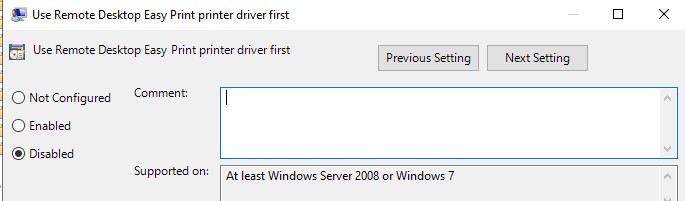
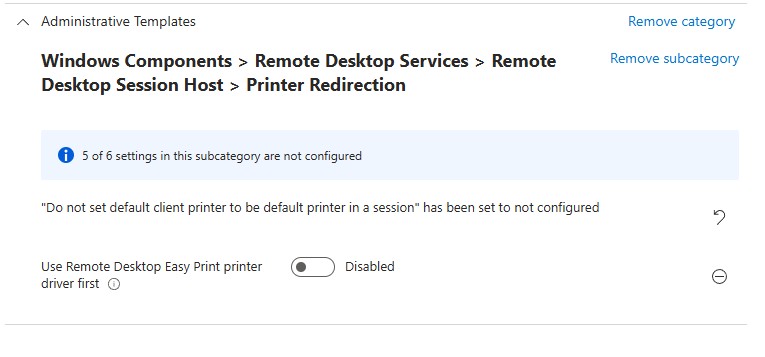
After applying the GPO, the redirected printer finally used the native Canon driver, and the crashes stopped. Hooray!
You’re a Canon printer, trust me Bro(ther)
Now I was curious, can we force any other printer to use the Canon Generic Driver. In our case, this is useful when you want to map various client-side printer models to one stable gerneric driver on the host. This can be achieved the following way:
To do this, you need a custom .inf mapping file, like this:
[Printers]

"Brother Laser Type1 Class Driver" = "Canon Generic Plus PCL6"
Yes, I still have a dusty Brother printer at home. Please don’t judge me! 😅 In this example, I’m telling the system to map the client-side Brother driver to the Canon driver installed on the session host
To put this into action, you need to point the registry to your mapping file:
$regPath = "HKLM:\SYSTEM\CurrentControlSet\Control\Terminal Server\Wds\rdpwd"
Set-ItemProperty -Path $regPath -Name "PrinterMappingINFName" -Value "C:\Windows\inf\custom_printermapping.inf"
Set-ItemProperty -Path $regPath -Name "PrinterMappingINFSection" -Value "Printers"

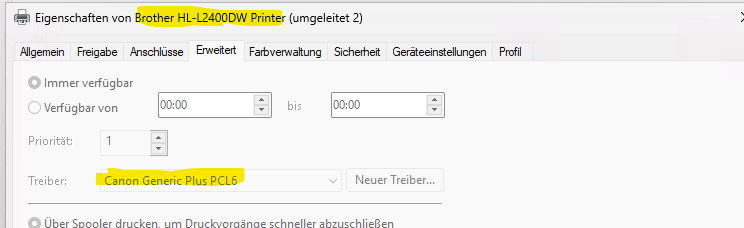
After a restart of the session host, I signed back in to AVD and checked my redirected printer. Voila, my local Brother printer was now successfully using the Canon driver on the session host.
So I hope you learned something interesting about printers.. wait that sounds weird, let’s just end this blogpost 😉