
Adding More Context for Context Based Redirection
Context based redirection is the cool new preview feature that Microsoft gives us to control the redirection behaviour of drives, printers, USB and clipboard for compliant devices. But what if this isn’t enough?
First of all I’m veeery thankful that Microsoft is addressing this issue. Until now, you were only able to allow or block redirection on the AVD host pool or via Intune configuration policies / GPO. If you compare it to Citrix, where you’re able to control this with Citrix Policies in every way you can imagine, this is a huge gap. So if you have a set of users who should have access to local drives, you need to give them a separate host pool or group them somehow to apply the correct policy. Worse, if you’d like to grant access to local drives depending on where they are (home office no, office yes), you’re screwed.
So context based redirection gives you back all the possibilities you had with Citrix, right? Right??? Well, if you read the Microsoft documentation or some MVP blogs, they always implement it like this:
- Create the authentication context
- Configure the Host Pool RDP Settings (AVD) / Remote Connection Experience Settings (W365)
- Create a Conditional Access Policy (CAP) with the specified authentication context as target resource and set it to Grant access → Require device to be marked as compliant
Well, this covers one case, but it doesn’t get you all the flexibility you had with Citrix. So I identified two use cases I wanted to test:
- Granting the redirection depending on the network they are on
- Granting the redirection for a specific user group, regardless of where they are
Can we use the full power of Conditional Access conditions, or is it limited to compliant devices?
Let’s do some testing (W365)
I thought about what a possible Conditional Access architecture could look like and came up with this:
- Configure AVD / W365 to allow redirection for the authentication context
- Create a CAP to block the redirection, with exceptions for specific groups / networks
I tested it with drive redirection because that’s the one I care about most, and with W365 first, because the feature wasn’t available for AVD in June.
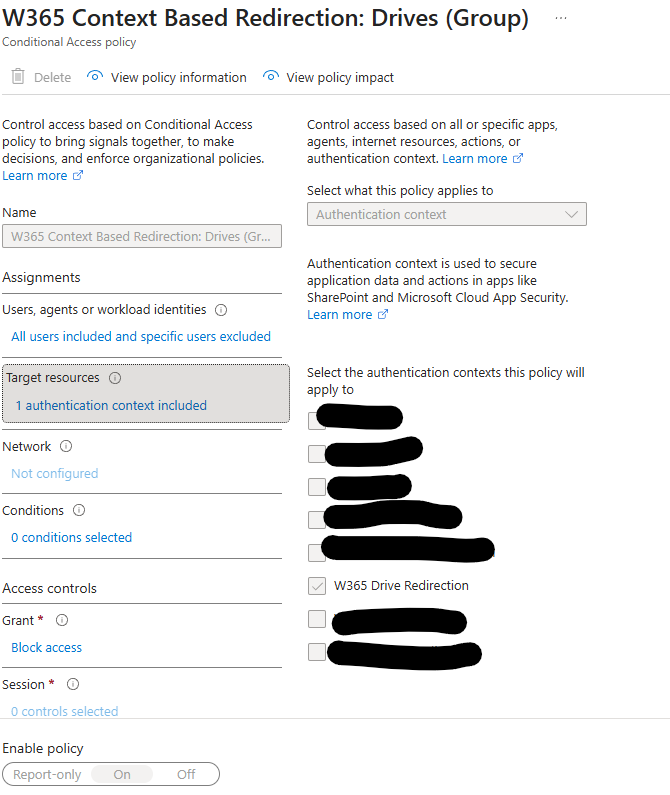
First I created the authentication context as described in the docs. Don’t miss the “Publish to apps” flag! Then I created the Remote Connection Experience Settings and mapped it to the context. Apply this setting either to all Cloud PCs or to a specific device group. Then I created the CAP as shown in the screenshot. Target resource is the created context, and grant is set to block access. In the users section, I included all users and excluded myself.
And the drumroll… did it work? YES 🥳! It worked with both excluded groups/users and excluded networks. That gives us some more flexibility.

Let’s do some testing (AVD)
In July, Microsoft finally rolled out the public preview feature for AVD as well. So this should simply work for AVD too, right? I configured the AVD host pool to use the same authentication context. The CAP stayed the same, and what should I say… it never worked for me.

As soon as I configured the authentication context, the drives never got redirected. I event tested it with the configuration described in the Microsoft document but without success. I don’t know if this is a preview problem or not, because troubleshooting this feature is really painful. For example, you don’t get any useful info from the sign-in logs. The specified CAP shows as “not applied,” even when it definitely applies. That’s something Microsoft is aware of, and hopefully it gets fixed in the future. Otherwise, troubleshooting redirection issues is basically impossible.
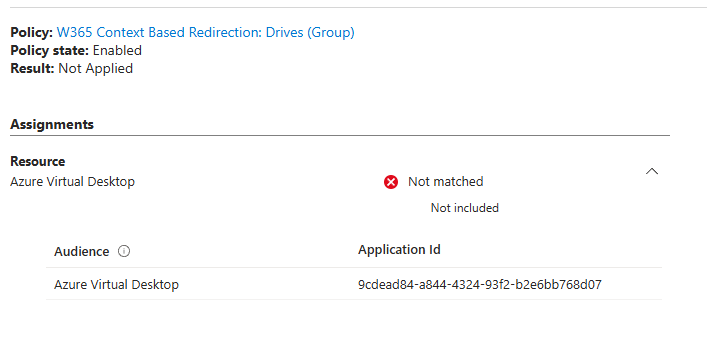
This leaves me unsure whether the feature doesn’t work correctly, or if I’m just missing something obvious. I’ll keep testing and post an update once I know more.
My wish list for Sa(n)tya Nadella 🎅
Bottom line: this feature is a very good start and I’m glad it exists. But it needs to get better for production use. So I created my personal wish list:
- Please give us more info in the sign-in logs
- Please combine the existing redirection options with the context possibilities (e.g. redirect only specific drives in a specific context)
That’s all I need. I promise I’ll behave and buy as many Copilot licenses as I can afford.