
Wsappx at 20% CPU: How OneDrive Drove My Windows 365 Fleet Crazy
A few days ago, a user reported that the wsappx service is consuming almost 20% of the CPU on his W365 client. I looked a little bit deeper and then I saw it. Almost 20% CPU. Constantly. On every single Cloud PC in the fleet. And here’s what made it very interesting: nothing was broken. Every MSIX App worked fine and was also up to date. It took me some serious troubleshooting to find the baddy. So I’ll write it down for you. Maybe it helps you when you find yourself in some CPU hassle.

First things first and I’ll keep it short, because it all came up empty. Application and System event logs were all clean. The AppX deployment log had a handful of 0x80070005 errors for a few unrelated packages like Notepad++, QuickAssist and OneDrive but just a few and nothing that explains the constant load. And the process behind wsappx? svchost.exe. Well thanks Windows, veeeery helpful 🙄.

So after some clueless searching I decided to make a CPU Sampling Trace with the Windows Performance Recorder. I was hoping that I can see what is really causing the high CPU traffic in the svchost process. WPR seemed like a good Tool for that, because it is reporting all the threads every millisecond. I ran the tool with this command.
wpr -start CPU -filemode
wpr -stop C:\Temp\appx.etl
Keep the trace short, because the logfile will be big. Mine was like 500 MB after 30 - 40 seconds. I loaded the log into Windows Performance Analyzer and checked the CPU consumption part. This showed me the following data:
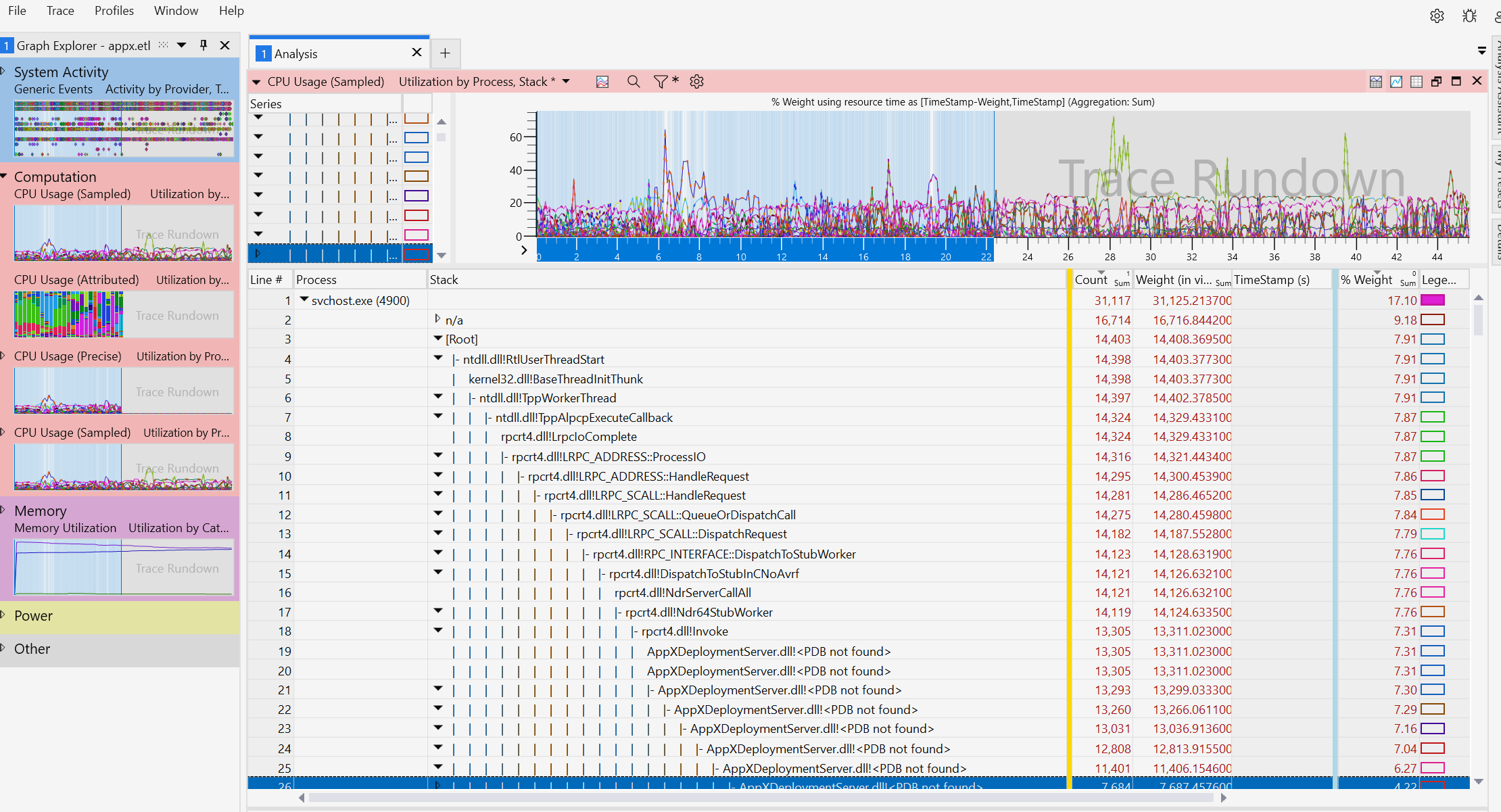
So lots of rpcrt4.dll!LRPC entries. Looks like the AppX Service was constantly answering lots of API calls. But who is the caller? Hm, no information about the caller here. After some further research, I found a way to measure who is calling the specific API. Well that sounds like a plan! You can do it like this:
#Get the data
logman create trace AppxClient -p "Microsoft-Windows-AppXDeployment" 0xffffffffffffffff 0xff -o C:\Temp\appxclient.etl -ets
Start-Sleep 30
logman stop AppxClient -ets

#Check the top callers
Get-WinEvent -Path C:\Temp\appxclient.etl -Oldest | Group-Object ProcessId | Sort-Object Count -Descending | Select-Object Count, Name -First 5
That gave me an interesting result:
Count 		Name
-----		 ----
7672 		13376
    1		8556
So all the traffic from one process with the PID 13376. And now the big reveal. Ladies and gentlemen, who is the mystery process hiding behind this process ID? Drumroll…… it is:
Get-Process -id 13376
 NPM(K)    PM(M)      WS(M)     CPU(s)      Id  SI ProcessName
 ------    -----      -----     ------      --  -- -----------
     57    42.52     112.97     494.72   13376   2 OneDrive
OneDrive… ONEDRIVE? Ok, quick check. I ended the OneDrive Process and the CPU load was gone. Wait, haven’t I seen some OneDrive error before in the AppX deployment log which I totally ignored? Let’s check again
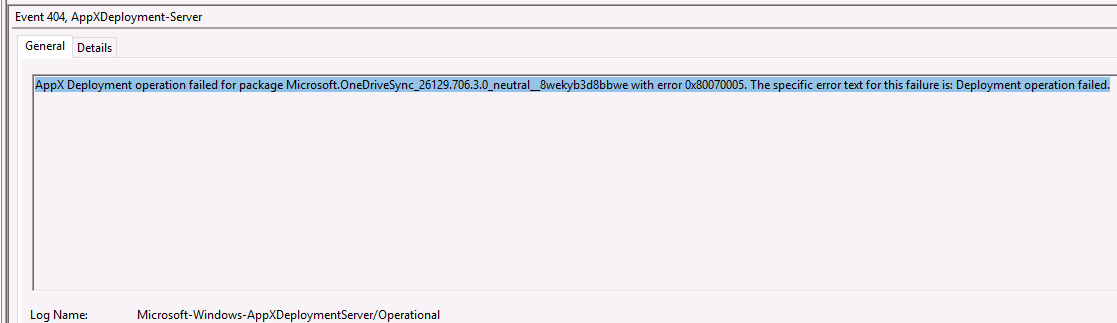
Oh right, seems more important now. I ran Get-AppxPackage for the OneDrive package and nothing was installed. So is this installing failure causing the issue? It happened on every single Cloud PC in exactly the same way — that smells like something centrally managed. So: Group Policy, maybe? I moved my test client to an OU without GPOs and the issue was gone. I ran Get-AppxPackage and the OneDrive package was installed. Yeah problem found! But how to solve it?
I checked the involved policy settings and found this setting under Computer Configuration → Administrative Templates → Windows Components → App Package Deployment → Prevent non-admin users from installing packaged Windows apps
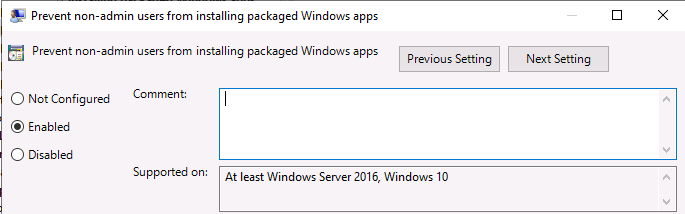
This could be the problem. Fortunately I’m able to allow the install for specific packages. So I added the OneDrive package. Computer Configuration → Administrative Templates → Windows Components → App Package Deployment → Allowed package family names for non-admin user install. You need to add the PackageFamilyName here and not the FullName, because it has the version number in it - Microsoft.OneDriveSync_8wekyb3d8bbwe
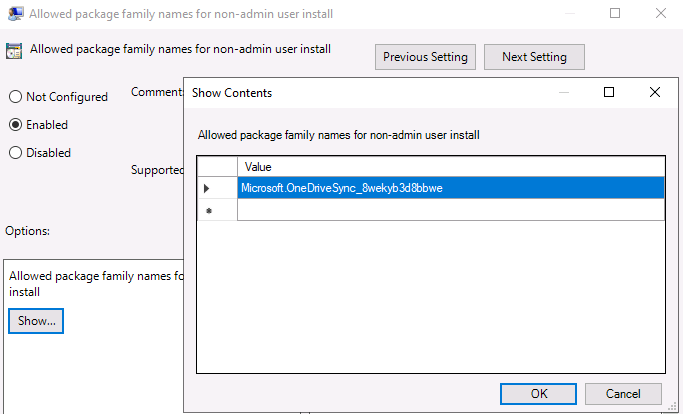
With this configuration OneDrive Package was installed correctly and the CPU was freed up again for more important things like 72 tabs in the Edge browser or 7 different AI agents.

So that was my story about how Mystery Inc. (myself) solved the case of the week. I still don’t know what this MSIX package is good for, because OneDrive was running normally and I haven’t noticed anything since the installation of the package. Anyway, I wanted to share the logs and traces I used with you, so maybe this helps for the cases you have to solve.